Live Transcription&Translation
How does Live transcription work and how do I enable it?
Live transcription is a great way to make your content more accessible to participants. ClickMeeting uses speech recognition technology to automatically create captions during your online events. The feature is included in all ClickMeeting Live and Automated plans.
You can use Live transcription in meetings and webinars, including those with Edu mode enabled. Live transcription is not supported in a private (Presenters only) mode.
An up-to-date OS (Windows/MacOS) is required to run Live transcription. If you want to convert your speech to text while hosting an event, participating in it as a presenter or engaging in a live discussion as an attendee, please use the latest version of Google Chrome/Microsoft Edge. If you only want to get captions of what other participants say, feel free to use any supported browser or the ClickMeeting desktop app.
Please note that the Live transcription feature does not run on mobile browsers or the ClickMeeting mobile app.
When using Live transcription, please keep in mind the following factors, as they may affect the accuracy of live transcription:
- background noise
- volume and clarity of the speaker’s voice
- presence of accents and dialects in speech
- speaking too fast
- the language selected under Transcription settings not matching the speaker’s language

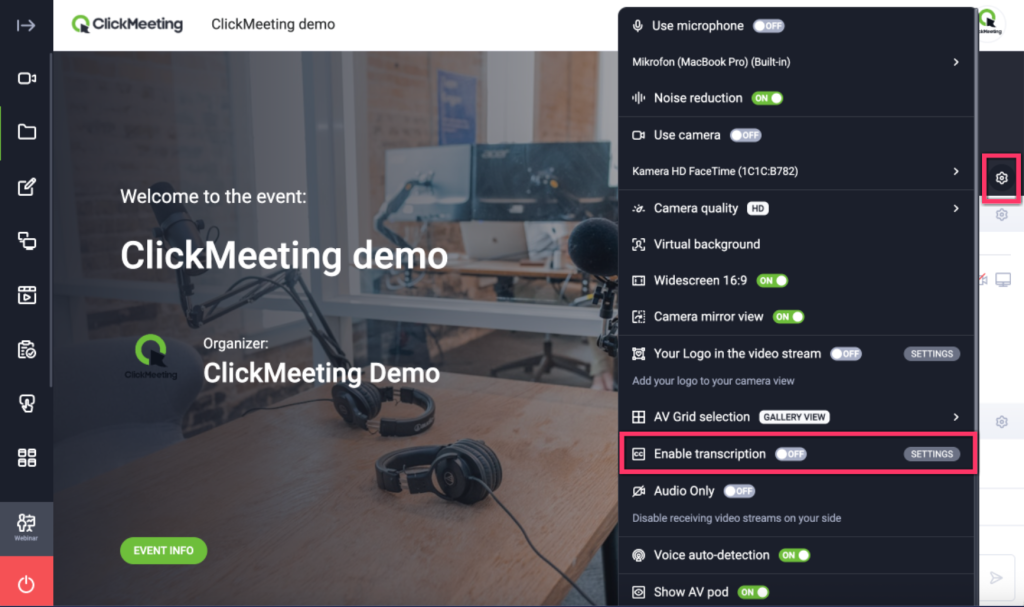
Live transcription can be activated by both the host and presenters in the event room. To enable it, click the gear icon next to AV settings → toggle the button next to Transcription to the ON position.
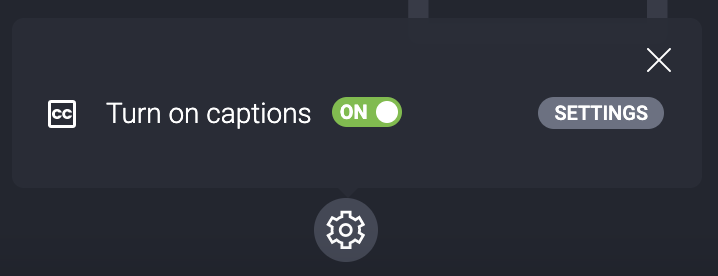
To enhance the accuracy of the feature, click the Settings button next to Transcription and make sure the language selected there matches the language that will be spoken during the event. For example, choose English if spoken content will be delivered in English.
Currently, 52 languages are supported: Afrikaans, Albanian, Arabic, Belarusian, Bulgarian, Catalan, Chinese, Croatian, Czech, Danish, Dutch, English, Estonian, Filipino, Finnish, French, Galician, German, Greek, Hebrew, Hindi, Hungarian, Icelandic, Indonesian, Irish, Italian, Japanese, Korean, Latvian, Lithuanian, Macedonian, Malay, Maltese, Norwegian, Persian, Polish, Portuguese, Romanian, Russian, Serbian, Slovak, Slovenian, Spanish, Swahili, Swedish, Tagalog, Thai, Turkish, Ukrainian, Vietnamese, Welsh, Yiddish.
The live transcription is only used to generate subtitles from the speaker’s speech, so it is necessary to set the language accordingly.
If you need to obtain a translation of the event, we encourage you to generate a transcript of the recording in your account panel and translate this transcript with an external tool. Find out more about the AI recording transcription functionality here.
The host, presenters and attendees can manage transcription font size and contrast under the same Settings.

Once the Live transcription feature is enabled, the speaker can choose to disable the captions for themselves, while they will remain visible to attendees.
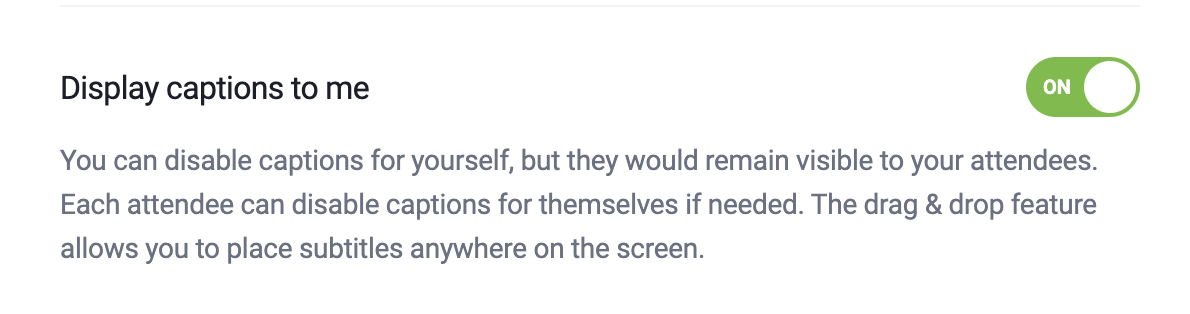
Each attendee can also choose if they want to have captions displayed to them.
Participants can move the text area around the event room by dragging and dropping it.
Please note that captions are not saved in the Account panel and cannot be downloaded.
Please note that event recording does not capture captions.
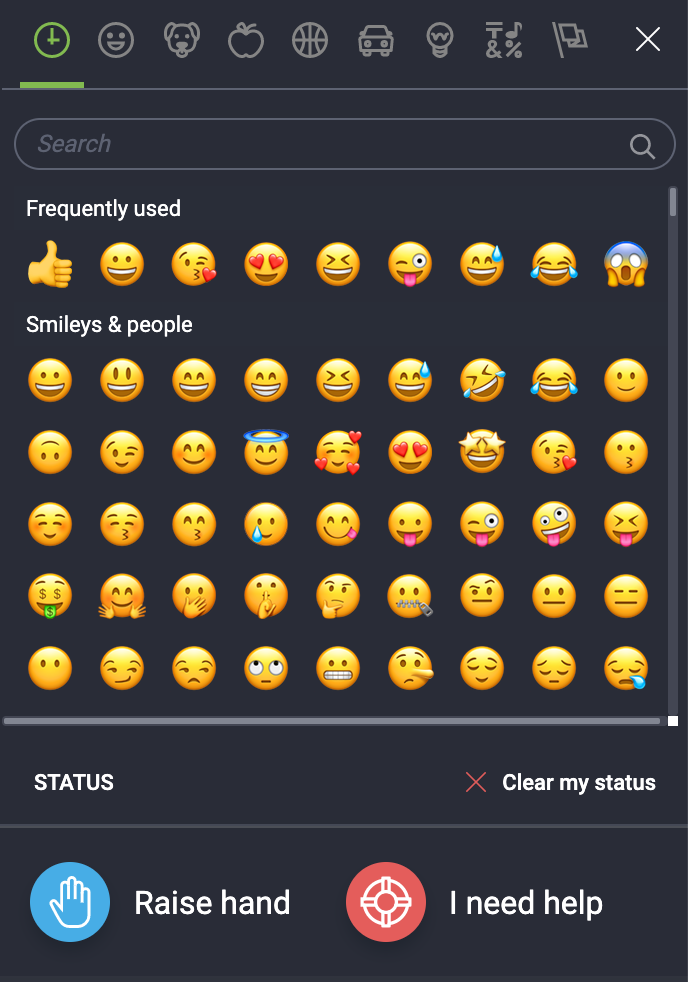
A tip for attendees: you can ask the host/presenter to enable captions to facilitate your webinar experience by contacting them via chat or using the Raise hand button.
How does Live translation work and how do I enable it?
Live Translations lets attendees follow an event in their own language. Captions spoken during the event are automatically translated into the language each participant selects.
Live Translations is a paid add-on that translates live captions in the event room into one of 4 languages:
- Polish
- German
- English
- Spanish
Each participant can choose any of these 4 languages, independently of what language the event is being run in. Translations are delivered as captions (subtitles).
Add-on and usage limits
- Live Translations is a paid add-on that the host must purchase.
- One add-on purchase enables Live Translations for 3 events.
- Once the pool of 3 events is used, the host needs to purchase the add-on again to keep using the feature.
To learn more about the add-on billing and purchase, please click here.
How to enable Live Translations
Join the event, click the gear icon next to the camera and microphone icons.
Select Enable Transcription > On, then open the settings next to it.
Set Live Transcription to ON and select the language of your event.
If you’ve already purchased the add-on, select Caption Translation > On. If you haven’t purchased the add-on yet, purchase it first, then turn on Caption Translation.
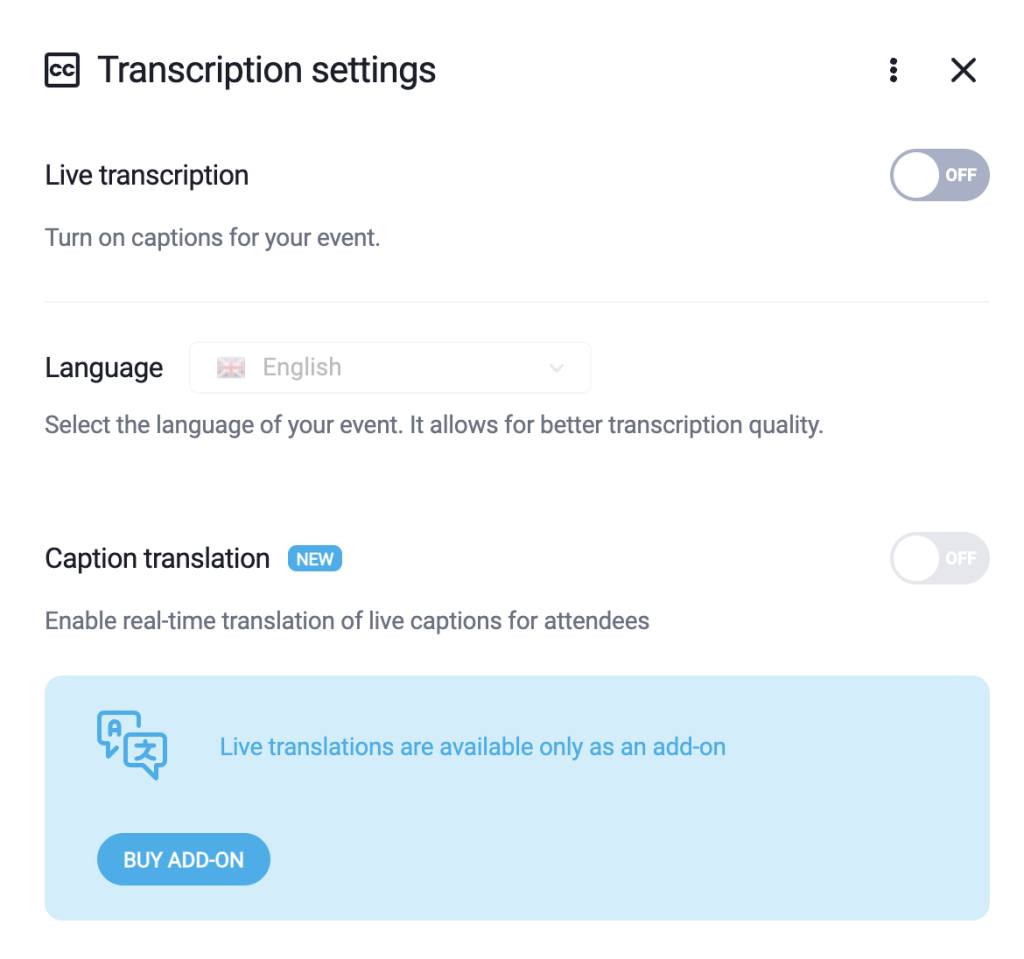
Once the Live transcription feature is enabled, the speaker can choose to disable the captions for themselves, while they will remain visible to attendees.
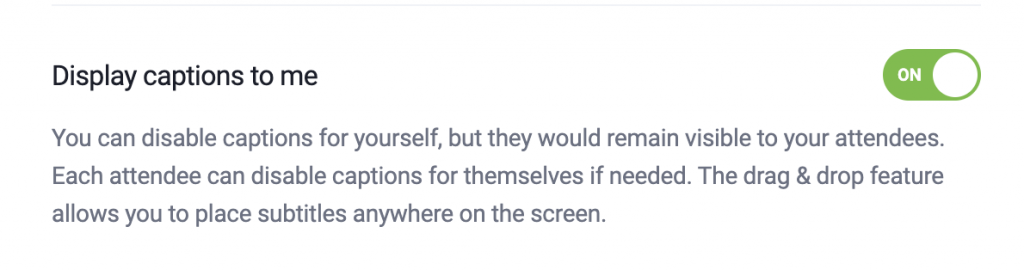
Please note that captions are not saved in the Account panel and cannot be downloaded.
Please note that event recording does not capture captions.
How attendees use it
Once the host enables Live Translations, each attendee can also choose if they want to have captions displayed to them.
Participants in the room can select their preferred language from the 4 available options. Translated captions will then appear for each participant in the language they choose.
Attendees can move the text area around the event room by dragging and dropping it.