Upgrade
How do I upgrade or downgrade my ClickMeeting plan?
Log into your account, hover over your name in the bottom left corner and select Billing details from the menu.
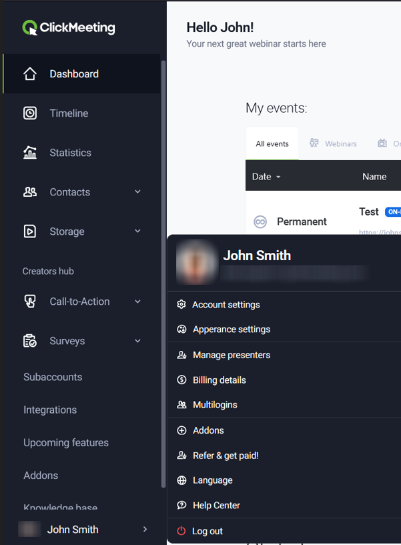
Then click Upgrade next to the Plan size section.
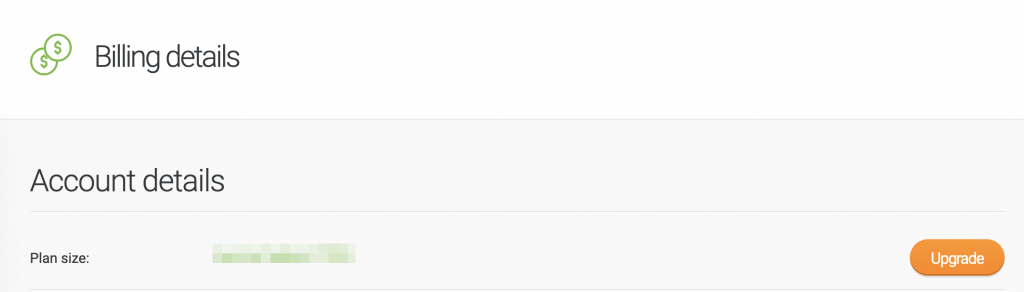
When you increase the plan to a higher package, the system will charge you only the difference between your current plan and the higher one, taking into account the number of days remaining in the current billing cycle. You will be charged the full price for a plan from the next billing cycle.
Note that if you have also purchased the Parallel events add-on, the fees for the add-on will also increase along with the account upgrade.
To downgrade your plan, please contact our Customer Success Team. You can downgrade the plan to any paid plan currently available, beginning with the next subscription period. We highly encourage you to contact our specialists a few working days before the start of the new billing cycle. It will allow for the efficient execution of changes and procedures.
Please note that it is not possible to downgrade the paid plan back to a free trial account.
Please also note that downgrading your plan will result in the voidance of all the promo-codes.
Can I increase the number of attendees allowed in one event?
FOR MONTHLY SUBSCRIPTION
If you notice that almost all of the seats are taken during your event, the system will notify you about the possibility to upgrade your account to a higher plan.
To upgrade your plan, please go back to your Account Panel and hover the pointer over your name in the bottom left corner of the screen. Select Billing Details and click Upgrade. The plans available will be displayed on the screen; choose one and click the Buy Now button on the right if you decide to upgrade your current package.
The number of seats available in the event room will automatically update, however, the attendees in the waiting room would need to refresh the page to join your event.
The upgrade will be activated by the end of the current billing period, and the system will display the appropriate amount to be added to the plan already assigned to your account.
FOR ANNUAL SUBSCRIPTION
Increase the number of attendees in your annual plan by +25, +50, +100, +200, +500 or +1,000 seats.
Log in to your account dashboard, select the ‘Extras’ section from the left-hand menu, then go to the ‘Additional seats’ option.
Additional seats:
- are only available for annual subscriptions (if you have a monthly subscription, you’ll need to upgrade your plan)
- are valid for 30 days from the date of purchase
- are not renewable; after 30 days, your participant limit reverts to that of your main plan
- are available only if there are more than 30 days remaining until the end of your billing period.