For presenters
Your first event
1) Before joining the event.
It is worth testing your connection and devices available on the following website:
https://utilities.clickmeeting.com/
For optimal platform performance, it is necessary to:
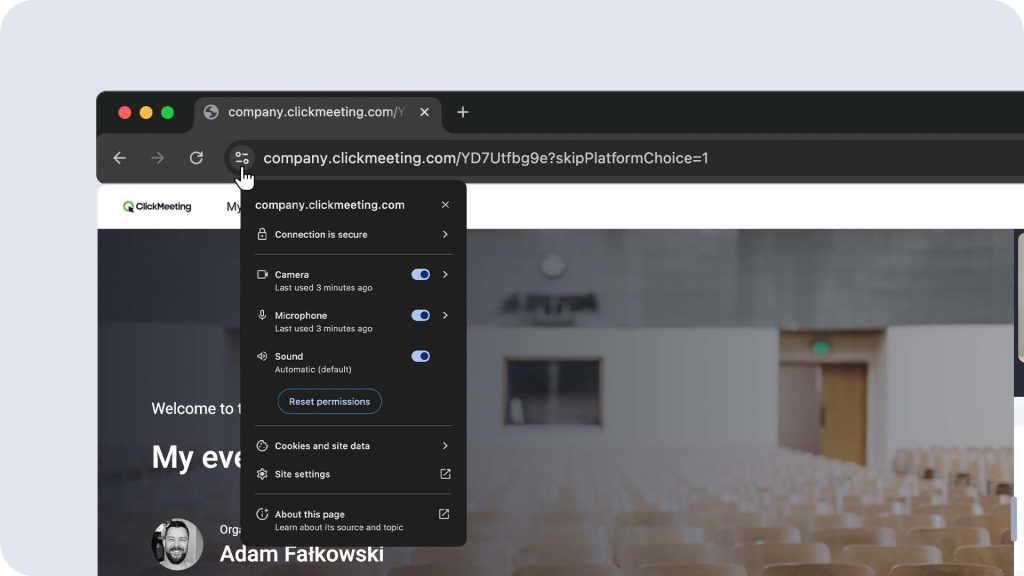
- grant permission to access the microphone, camera and screen sharing in the browser, and sometimes in the computer’s system settings,
- disable VPN, which may block access to devices and negatively affect the quality of the event.
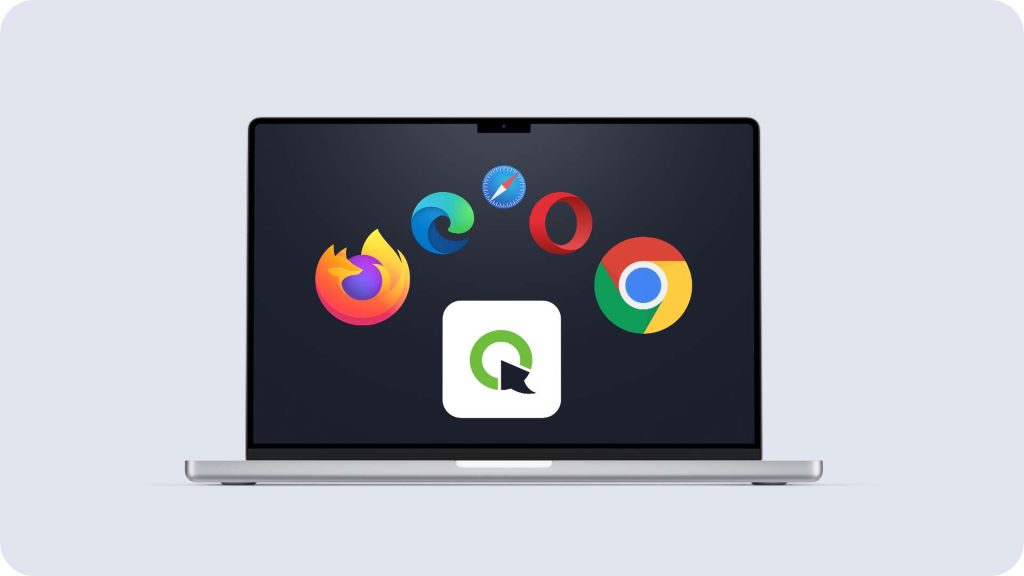
2) Open the event using the latest version of one of the supported browsers or using the ClickMeeting desktop application.
* As ClickMeeting is a browser-based platform, it is required to use the latest official versions of the following browsers: Google Chrome, Edge (Chromium) or Opera. We strongly recommend using the Chromium based browsers. ClickMeeting platform also works with Mozilla Firefox and Safari browsers, although it may not operate optimally with them.
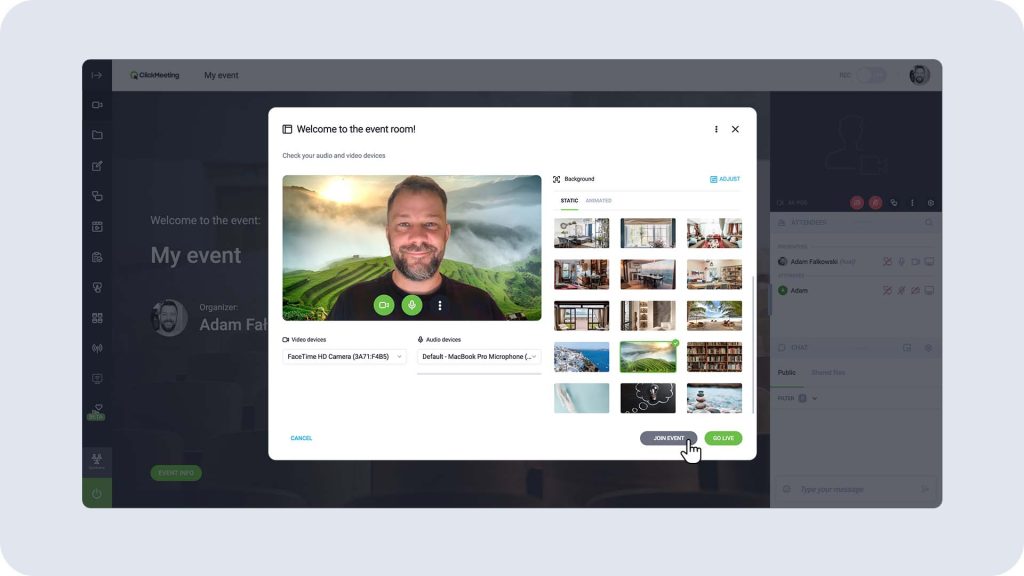
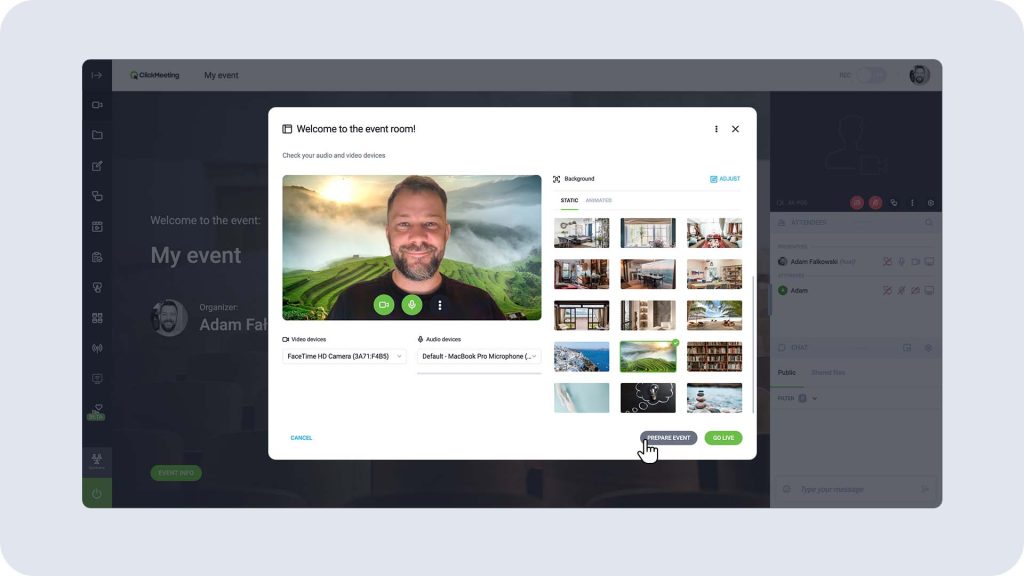
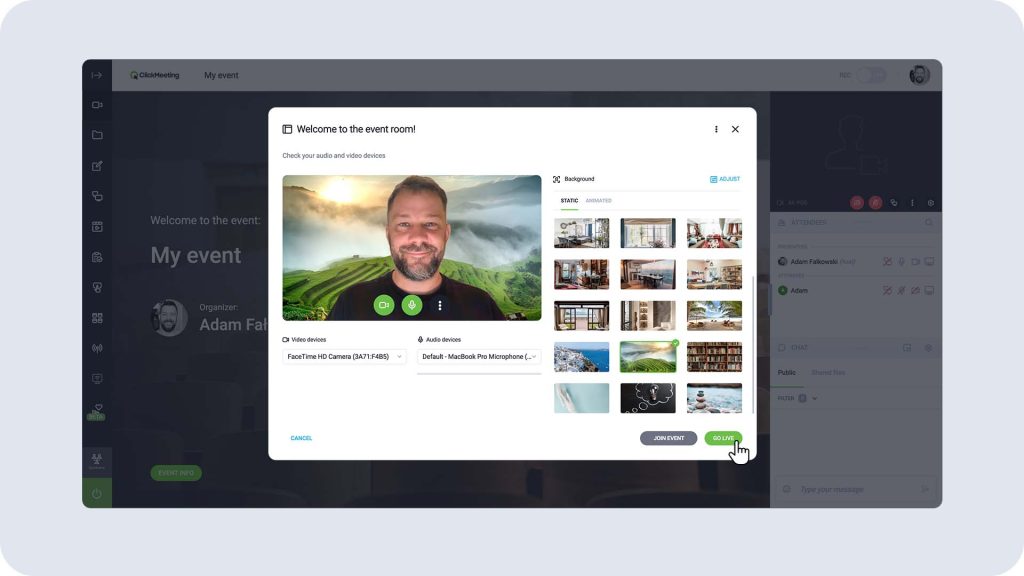
3) Join – Prepare – Start
Depending on the event settings, you have the following options:
JOIN EVENT
PREPARE EVENT
GO LIVE (START EVENT)
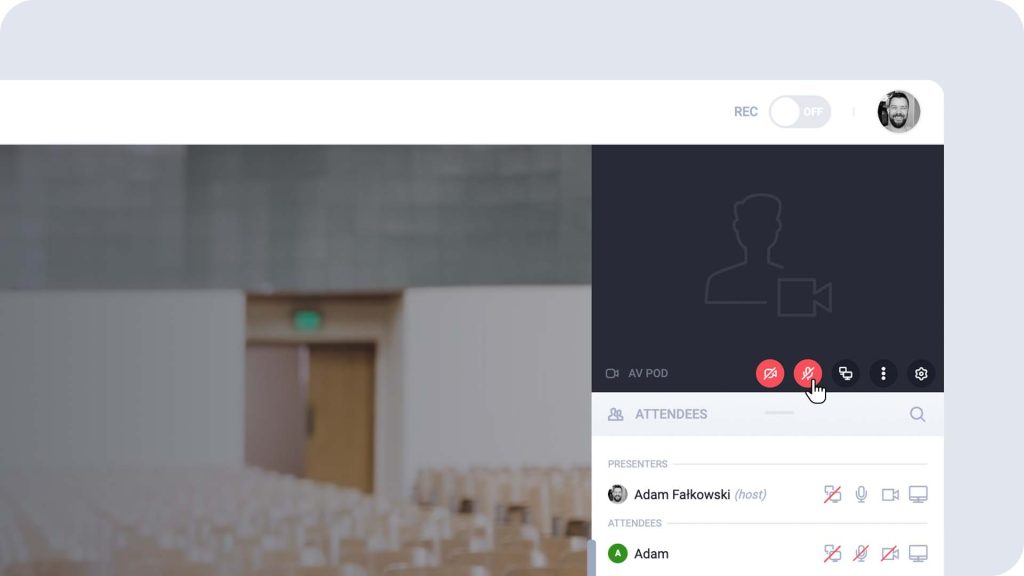
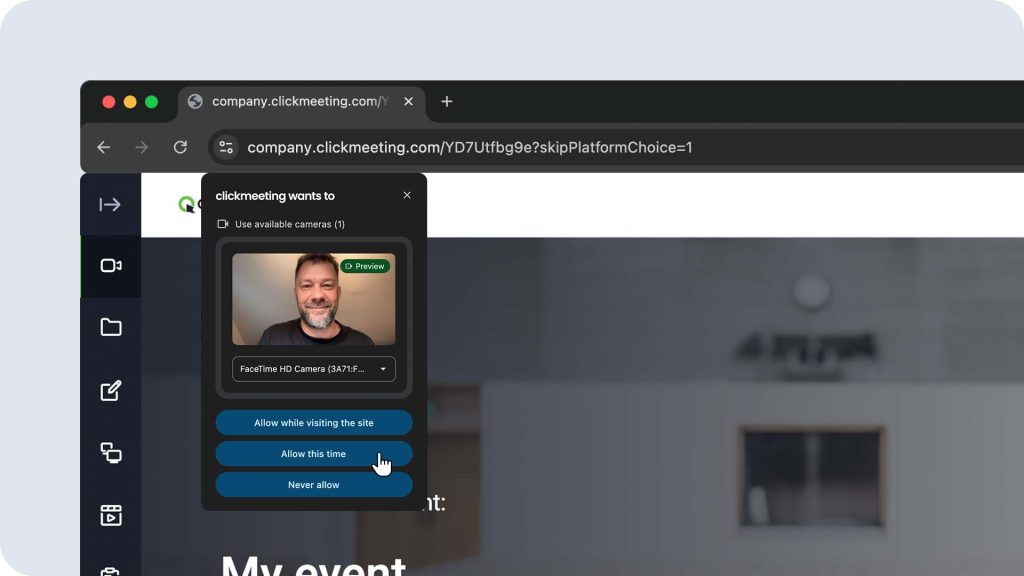
4) Enable the microphone and camera.
You may need to grant your browser permission to access your microphone and camera.
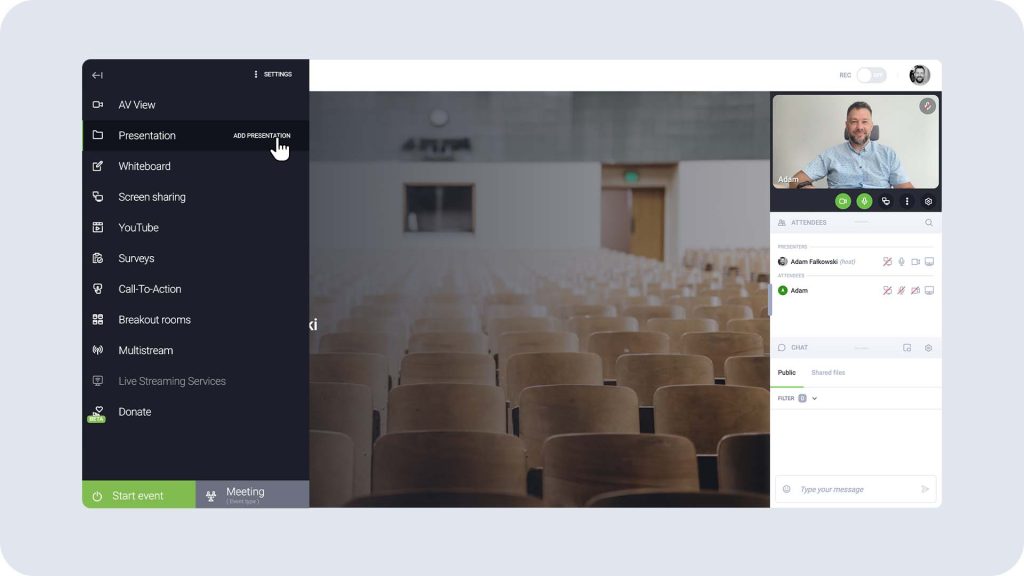
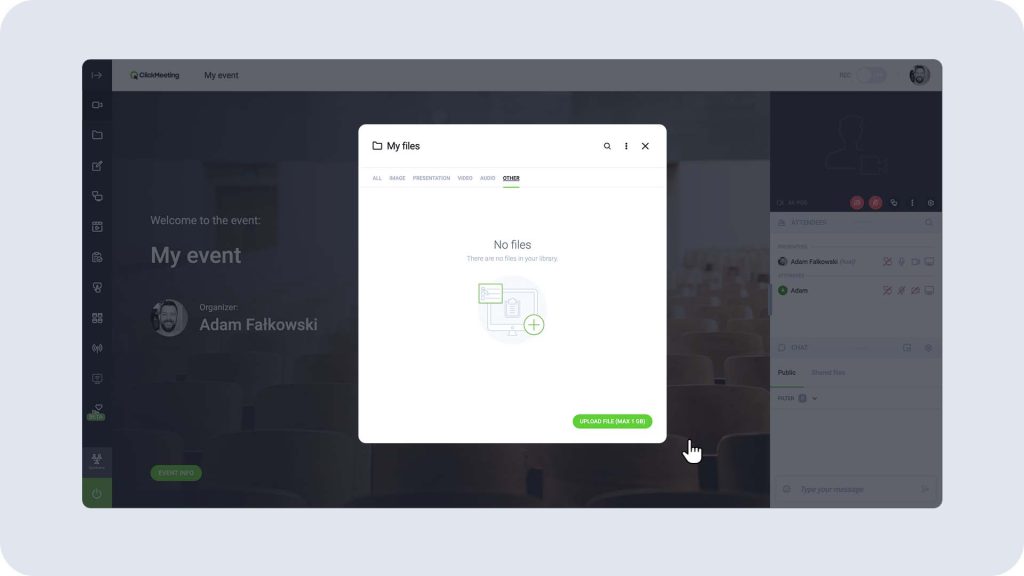
5) Display the presentation.
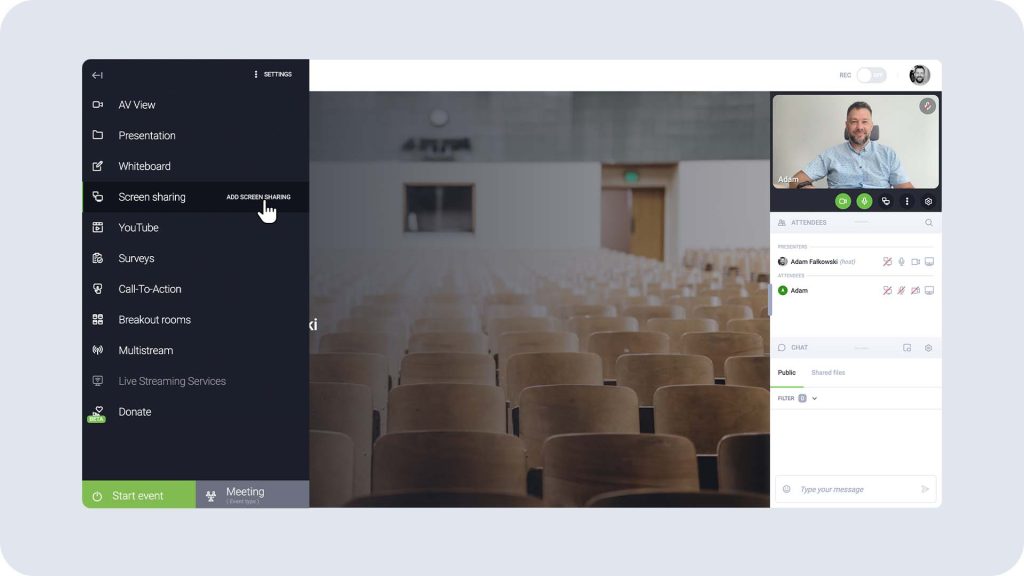
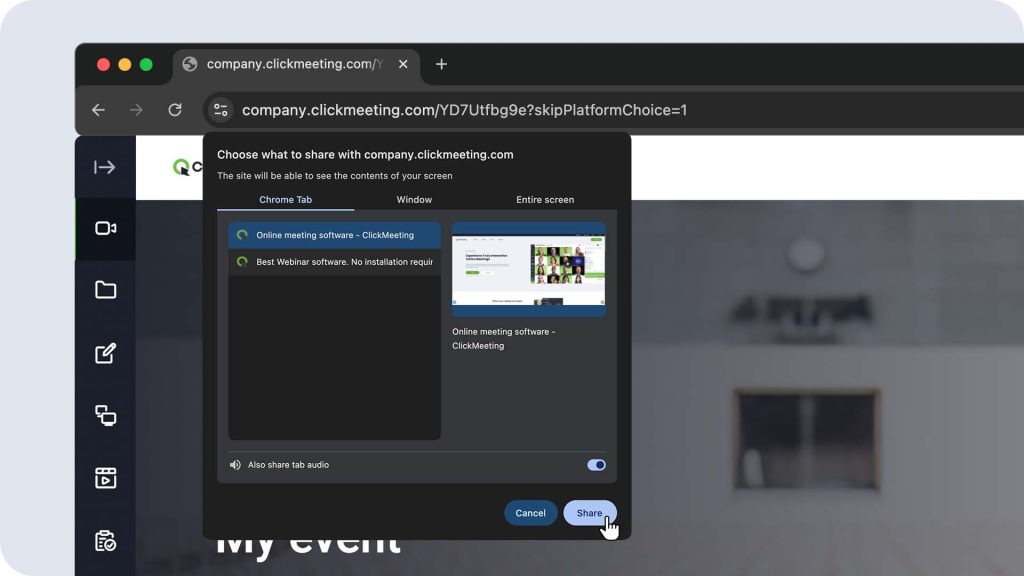
6) Share your screen
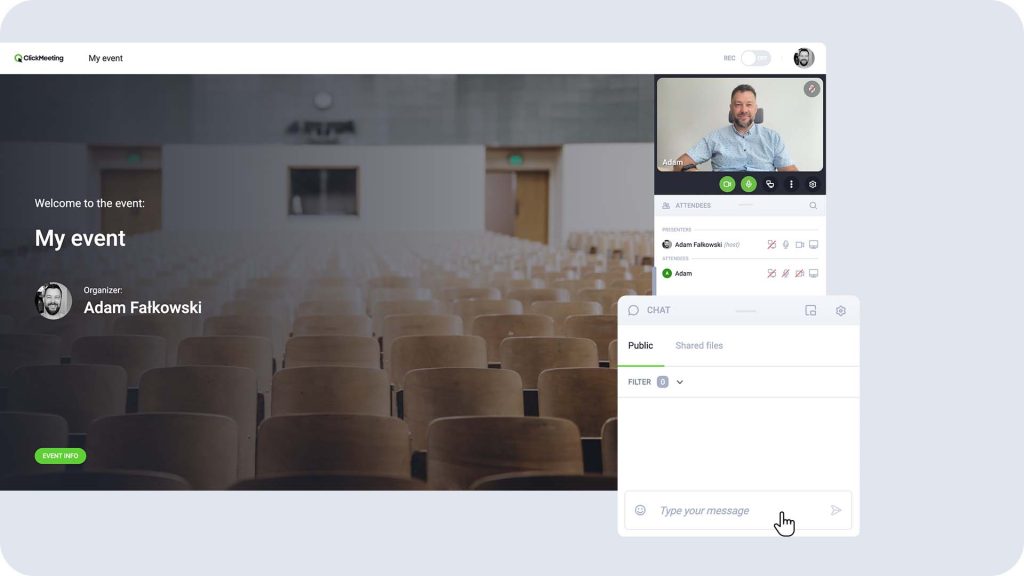
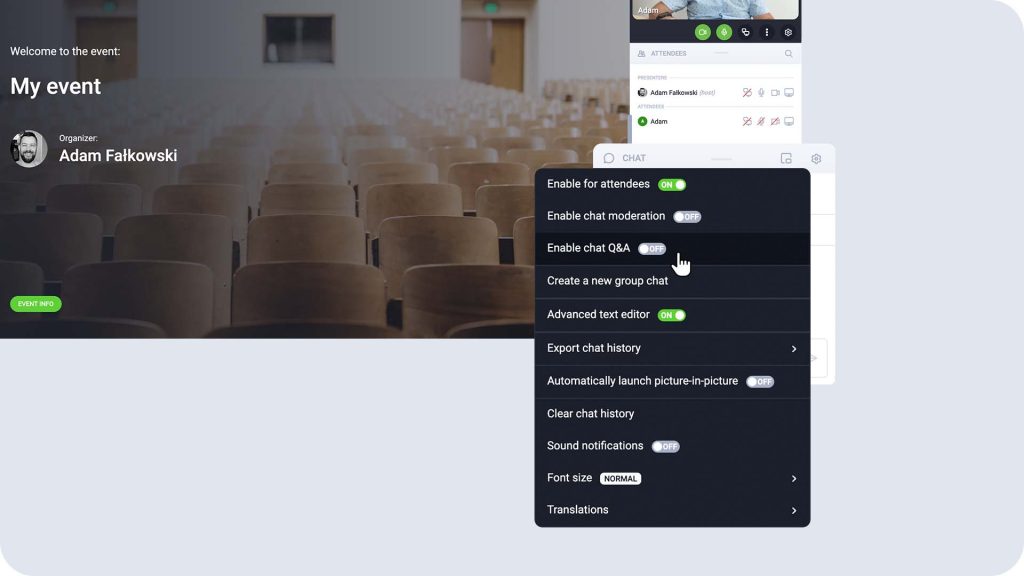
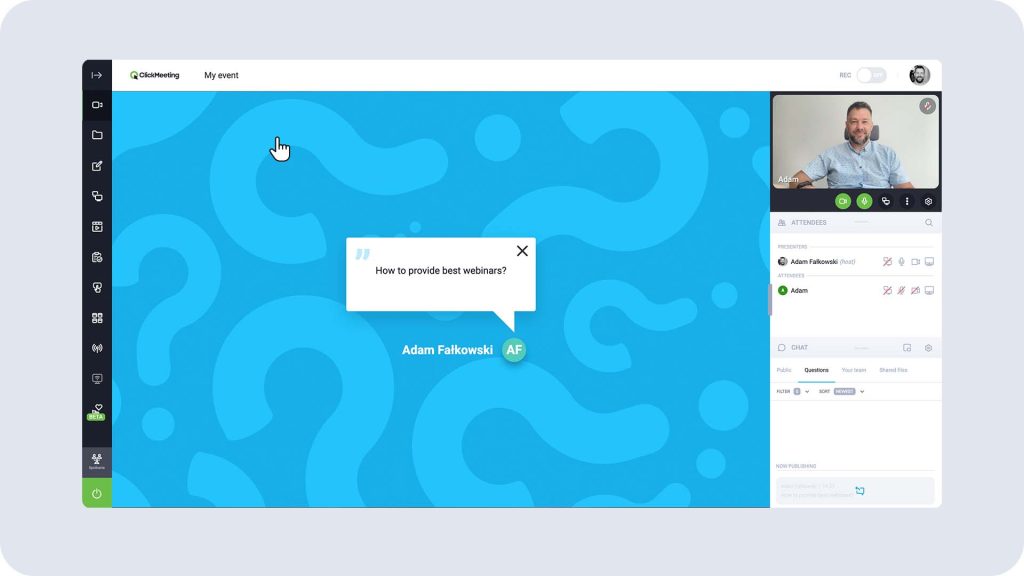
7) Communicate with attendees via chat and enable a question and answer session.
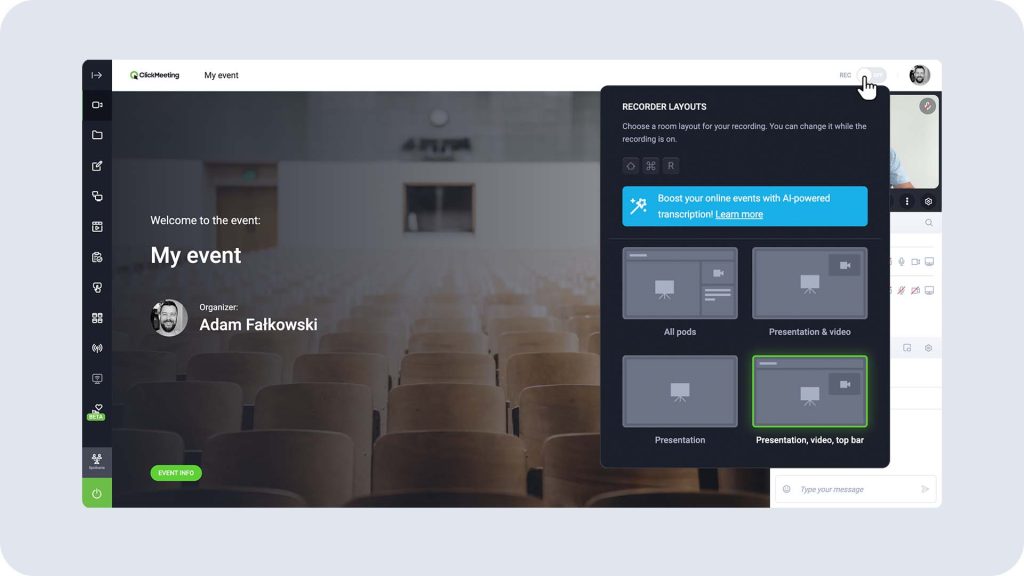
8) Record the event.
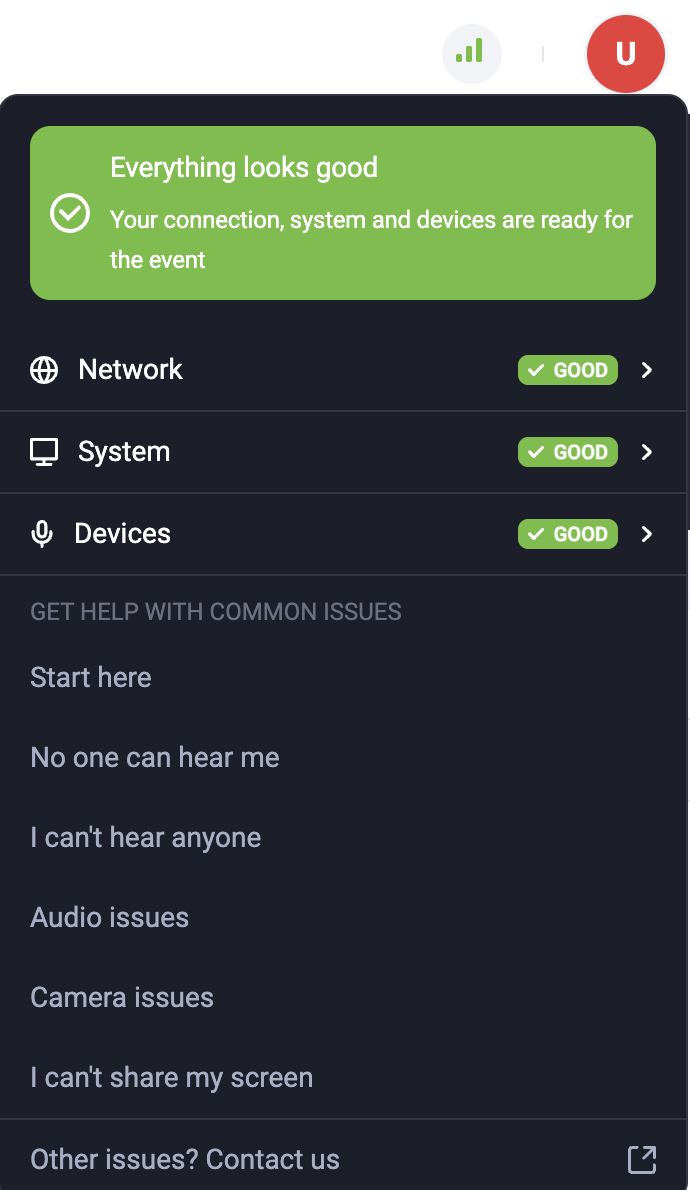
9) In the top-right corner of the event room, you will find specific steps to resolve the most common issues encountered when using the ClickMeeting platform.
Details such as network, operating system or device specifications can help the technical team or customer support department to pinpoint the exact nature of the problem. They can also guide users regarding microphone and camera availability, as well as the need to connect the device to a power source.
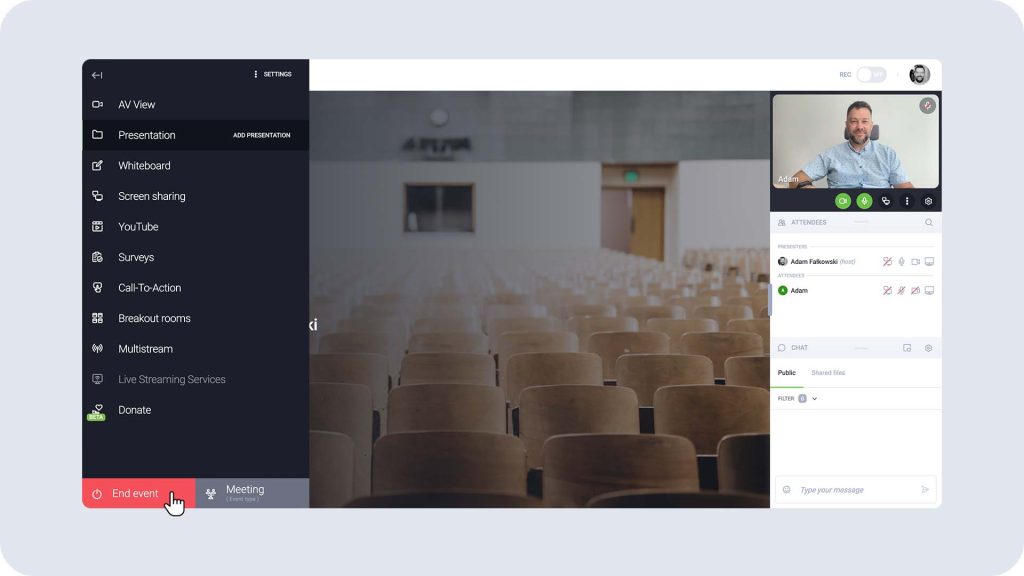
10) End the event.